
Gephi is an open-source software used for network analysis, that’s packaged with a flexible set of data visualization options and algorithms. Networks are a powerful tool for visualizing the complex relationships between different objects. Networks mapped by Gephi can be displayed as static pdfs, or with the right plugins installed, embedded as interactive maps on websites. Networks are also easily customized to highlight the properties of its nodes. complex Algorithms can be run on a network to help visualize a nodes centrality.
Gephi can be downloaded from here.
Getting Starting with Gephi
To create a network in Gephi, you need a data set containing both an edge list and a nodes list. This tutorial will assume that you are working with .csv files but Gephi accepts a range of file types. At the minimum, a Nodes list must contain one column labeled ID that lists all nodes in the data set additional columns may be added that describe the properties of the nodes. An Edges list must have, one labeled column labeled Source and the other labeled Target. To read more about importing .csv files click here.
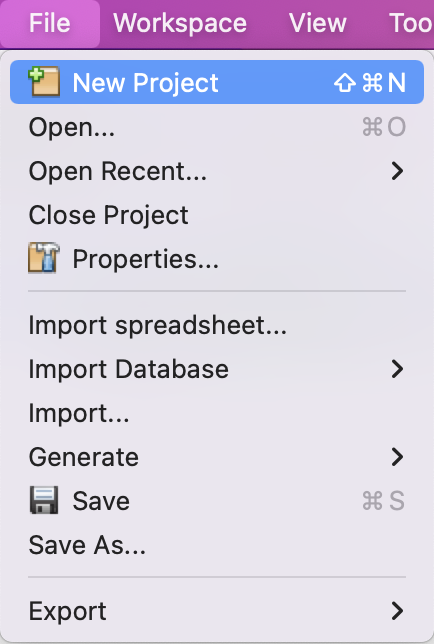
To begin, Once in Gephi start by clicking on New Project
Importing an Edge List
Start by Clicking on File > Import spreadsheet…

Next, navigate through your computers directories to find and select the File you want to import. after selecting open, you should be brought to the popup window below:
the Separator drop down menu is used to select the character used in your .csv file to distinguish between columns. Import as changes the type of data that you are importing. Charset can changed for datasets containing unconventional Characters.
Gephi by default reads and recommends settings for your dataset. Select Next > then Select Finish.

In the next popup menu select Append to existing workspace. Changing the Graph type will effect how edges are drawn. Directed edges draw arrows from the source node to the target node. Undirected edges only draw lines. Mixed can be used with more complicated data sets and will draw directed edges whenever possible. Select OK to finish importing the data.

Congrats, you’ve now successful imported your edge list

Importing a Nodes List (Optional)
Depending on your data set, you may not need to import a nodes list. Gephi will automatically generate a nodes list from your edge list. If you wish to add additional information about your nodes (ex. giving your nodes a labels, types, or descriptions) follow the same procedure you used to import your edge list but make sure Nodes table is selected from the Import as drop down menu.
Resources for Customizing Your Network
Gephi has a versatile set of options to modify your network, the right choice of algorithm and features can help highlight the most important aspects of your data. To read more about them, click here.
For a comprehensive overview of Gephi’s features click here.
Embedding an Interactive Gephi Network in a Website
To publish a interactive version of your network on a website, follow the tutorial by Volodymyr Miz, linked here