GitHub is an online platform that hosts code and data using the version control Git. A big part of digital humanities is making projects accessible and open source for others. GitHub tends to be a convenient place to keep and access these projects. A lot of projects and data sets we use in this class are also hosted on Github like the Cushman Photos dataset and the Tate Gallery dataset.
How to use GitHub
- Create a Github account (or login if you already have one)
- Once you login you have a screen like the one below with the left sidebar being the repositories (or projects) you have worked on recently

- To start a new repository (repo), type the name of the repository (typically something relevant to your project) at the center of your main screen next to your name. Then select if you would like to make the repo public or private and click the create “Create a new repository” button.
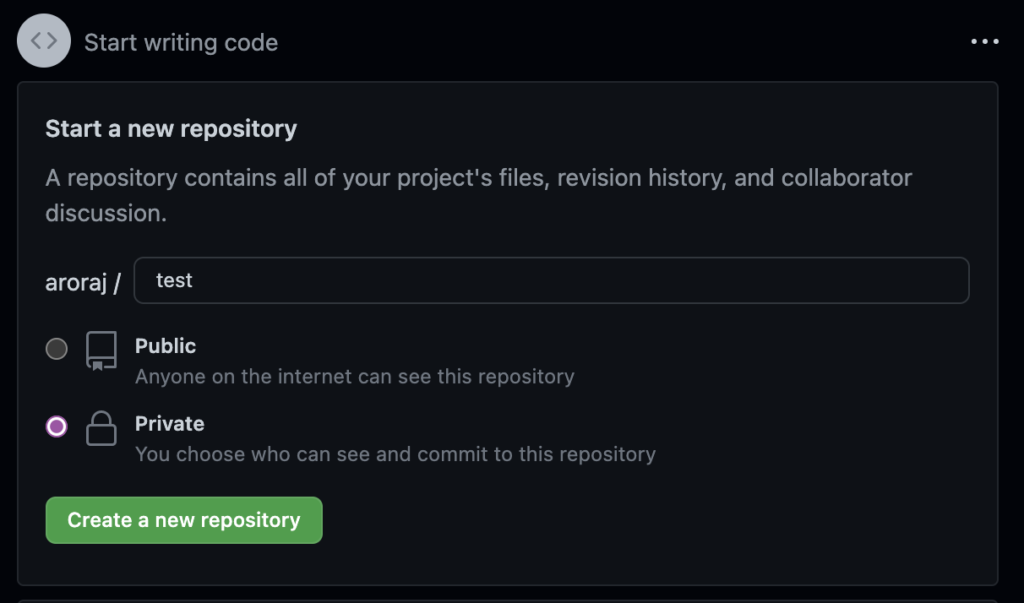
- To add other teammates to your repo, you can share it with them
- To do this, select the Settings button in the top nav bar
- Then select collaborators in the left sidebar and click the green “Add people” button to share

- To get the repo on you own computer, you can copy the link at the top in the Code section of you repo

- You can use the git command git clone <your link> in a terminal to get the repo onto your desktop. Note: I am using the IDE VSCode for my tutorial to code but you can use any IDE or terminal.

- You can now make any changes, add any files, code, etc on you own computer.
- Once you make those changes, you want to make sure to get all of the back on GitHub so your teammates or others can also access the code
- To do this you want to use a few git commands in your terminal
- First, you can use git status to see what changes you have made
- If you have new files to add, you can use git add * to add all the new files you created
- Then you want to commit those changes and add a comment of what you changed so your teammates know with git commit -m “<message>”
- Finally, you push those changes to GitHub with git push
- You can go back your GitHub page and see all the changes you made on there!

- If one you teammates made a change on there and you want to get those on your computer, you can use git pull
Further Resources
For more information on how to use GitHub you can go to https://docs.github.com/en which is the documentation on all things GitHub. Everything you would need to know about the website should be here.
To learn more about the git commands and version control you can go to https://www.w3schools.com/git/ which has an extensive tutorial on git and how you can use it with examples.
3 thoughts on “GitHub and Git Tutorial”
Comments are closed.
This is a great and very accurate tutorial. I have used GitHub for multiple projects I have worked on, and I believe it is one of the best tools available for coding/digital humanities. Working with the command line is one of the main parts of using git and I have done the steps you have described in the tutorial multiple times. It is also worth saying that it is possible to drag and drop files on GitHub to upload them to your repository.
Great tutorial! As someone who has never used Github for a class, it was always very intimidating and confusing to try and use, but I feel a bit more confident in at least using the user interface after reading through your post. Unfortunately I am still illiterate in code, but that’s a problem for another day.
I have used GitHub before to write code, but I did not know about the status technique to look at changes made. That seems really useful if you have made a lot of changes and want to see all of them listed. GitHub is truly powerful and I love this tutorial. Might have to learn a bit more of the command line syntax though.